

Issues, or snags, are the individual problems you record in a project. Each one can have a title, up to four photos, the person it's assigned to, comments, a location on the site map, and a complete tick.
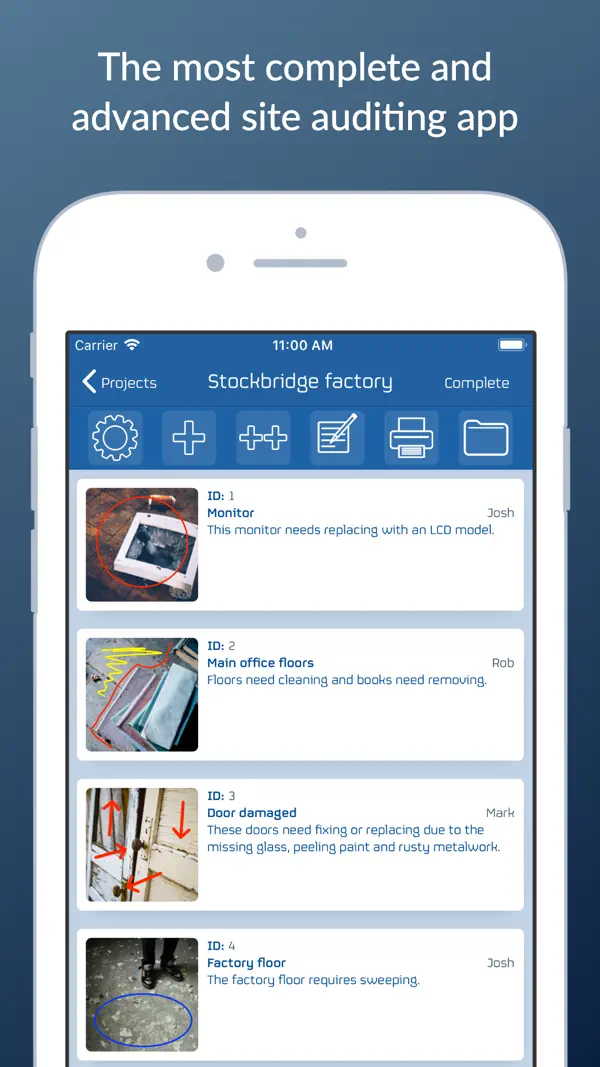
Add an issue
- Open the project and tap the + icon in the toolbar.
- A new issue opens, numbered in order ("Issue 1", "Issue 2" and so on). The camera starts straight away so you can photograph the problem.
- Fill in the details below, then go back to the list. Everything saves automatically.
If you'd rather the camera didn't open by itself, turn off Set Issue Image Immediately in Settings.
Add issues from your photos
Took your photos first? Turn them into issues in one go.
- Open the project and tap the multiple-add icon in the toolbar.
- In My Photos, choose how to add them:
- Multiple issues: one new issue per photo, up to 10 photos at a time.
- Single issue: one issue with up to 4 photos.
- Select your photos and tap Done.
Issue details
- Photos: swipe through them at the top. See Photos and annotation.
- Title: a short description, such as "Cracked tile in bathroom".
- Assigned to: the person or trade responsible. Reports can be sorted, split or filtered by this name.
- Comments: anything else, such as what needs doing or how urgent it is.
- Map location: where the issue is on the site map. See Maps and locations.
- Complete: turn this on when the issue is fixed. Completed issues show a tick and can be left out of reports.
Titles and names you've used before, in any project, are suggested as you type.
If Use completion dates is on in Settings, completing an issue also asks for the date it was fixed, and the report prints "Completed on" with that date.
Move between issues
When an issue is open, swipe left or right to go to the next or previous one, without going back to the list.
Duplicate an issue
At the bottom of the issue, tap Duplicate this issue. The copy, called "Copy of" plus the title, opens straight away, ready to change.
Reorder and delete issues
- Delete: swipe left on an issue in the list, or tap the pencil icon and use the delete buttons.
- Reorder: tap the pencil icon, then drag issues by their handles. Tap the pencil icon again when you've finished.
How many issues?
There's no fixed limit, but we recommend fewer than 100 issues per project. Very large projects can take a long time to turn into a report. For a big site, you could split the work into several projects and group them with a tag.