

Each issue can have up to four photos. Mark them up with arrows, shapes and colours so it's obvious what the problem is.
Add photos to an issue
- Open the issue and tap an empty photo slot.
- Choose Take photo to use the camera, or Choose photo to pick one from your library.
- Swipe across the photos at the top of the issue to see them all.
To add several issues from photos you've already taken, see Add issues from your photos.
Remove a photo
Tap the photo and choose Remove.
Annotate a photo
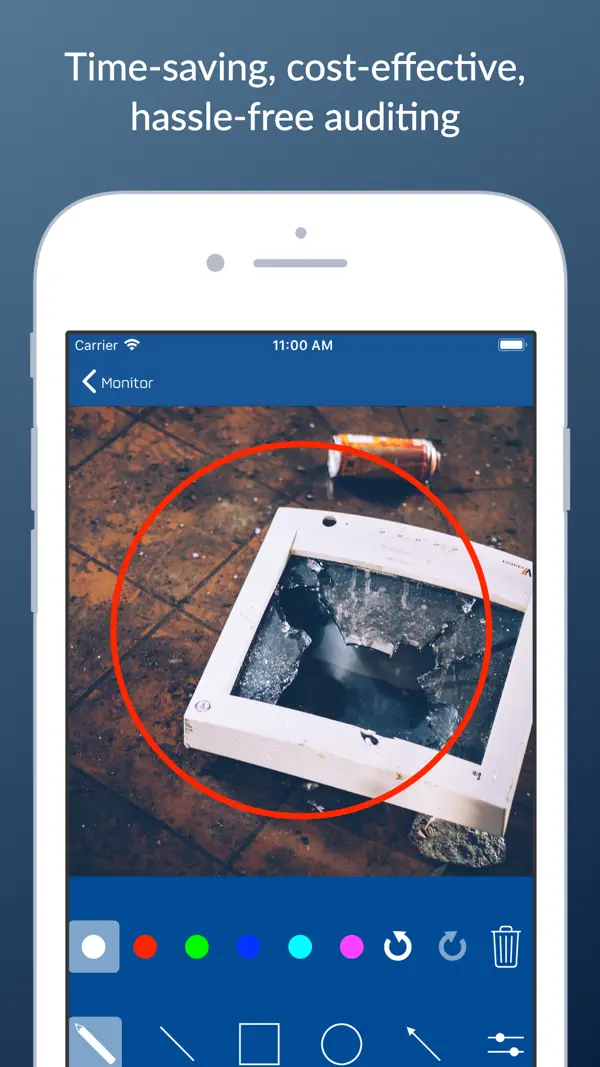
- Tap the photo and choose Annotate.
- Pick a tool:
- Pencil: draw freehand.
- Line: a straight line.
- Square: a rectangle around something.
- Circle: a circle or oval around something.
- Arrow: point at the problem.
- Tap one of the eight colour dots, then draw on the photo with your finger.
- Go back when you've finished. Your drawing saves automatically.
Your original photo is safe. Drawings sit on top of the photo rather than changing it, so you can come back and edit or clear them at any time.
Line thickness and arrow size
Tap the sliders button on the annotation screen to swap the colour dots for two sliders:
- Line thickness: thin to bold.
- Arrowhead size: small to large.
Snag List remembers your colour between photos.
Undo, redo and clear
- Undo removes the last thing you drew, and Redo puts it back.
- The trash button clears every drawing on the photo.
Swiping from the edge of the screen doesn't go back on the annotation screen, so it can't interrupt your drawing. Use the back button instead.
Photo settings
In Settings:
- Image crop to square (on by default) shows photos as squares in the app and in reports. Turn it off to show whole photos.
- Save photos to camera roll also saves photos you take in Snag List to your Photos library.
- Timestamp PDF images adds a timestamp to each photo in the report.