

Turn a project into a professional PDF report with a cover page, an optional map page and every issue with its photos. Choose a look, adjust the layout, then print or share it.
Preview your report
- Open the project and tap the printer icon in the toolbar.
- Snag List shows "Generating your report" while it builds the preview. Large projects take longer.
- Scroll through the Print Preview to check it.
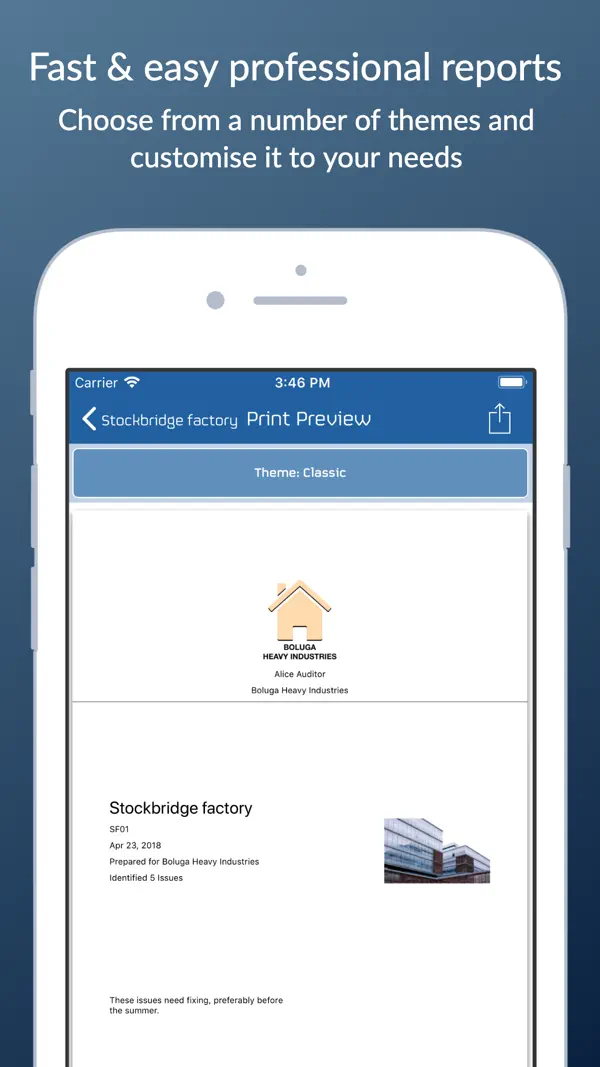
Choose a theme
Tap the Theme button below the preview and pick one:
- Classic
- Lighter
- Black Ink
- Superlight
- Superlight with Locations: adds a mini-map next to each issue showing where it is. See Maps and locations.
Try a few. The preview updates each time.
Theme options
Tap Theme Options below the preview to change:
- Paper size: US Letter, A4 or A3.
- Include photos, and Photos size (small, medium, large or huge).
- Text size: small, medium, large or huge.
- Include comments: shows or hides the project comments on the cover page.
- Include completed issues: turn this off to leave out issues that are already fixed.
- Show IDs: shows or hides issue numbers.
Sort and split your report
Also in Theme Options:
- Sort by: Unsorted (the order of your issue list), Assigned (grouped by who each issue is assigned to) or Title.
- Paginate by sorting: starts a new page for each assignee or title, so you can hand each trade its own pages. It's only available when Sort by isn't Unsorted.
Sorting only affects the report. Your issue list stays in the order you set, and issues with the same assignee or title keep their list order.
A report for one person
Under Include only issues assigned to in Theme Options, choose a name instead of All assignees. The report then shows only that person's issues. It's handy for sending each contractor just their list.
What's in the report
- Cover page: your company logo and name, the auditor, the project photo, title, reference and date, who it's prepared for (the client name), the number of issues found, the project comments and the sign-off signature.
- Map page: if the project has a map, with numbered pins.
- Issues: each with its number, title, photos, who it's assigned to, comments and a tick if it's complete.
Add your logo, company name and auditor in Settings, and sign the project off with the Complete button (see Sign off a project). You can also change words like "Issue", "Identified" and "Prepared for" under Identifiers.
Print, email or save the PDF
- In Print Preview, tap the share icon at the top right.
- Choose where it goes: Print, Mail, Save to Files, Messages, AirDrop or any other app.
The PDF is named after the project and the date. The date style follows Date format in Settings.
In the free Snag List app, sharing and printing need a subscription. See Free, Pro and subscriptions.
Export an issue list for a spreadsheet
To work with your issues in Excel or Numbers, open the project, tap the files icon in the toolbar and choose Export issue list .csv file. The file lists each issue's title, who it's assigned to, comments, completion date and whether it's complete. It's a list only and can't be imported back into Snag List. In the free app, this export needs a subscription.