

A comparison visit walks an earlier record in its order and asks, for each element, whether anything has changed. A residential inventory calls it a check-out; a commercial schedule calls it a dilapidations comparison; a party wall record calls it the post-works comparison. They work the same way.
Before you start
- The visit you compare against must be marked complete. If it is not, the comparison option says so; open the earlier visit and choose Mark visit complete from its menu.
- While a comparison exists, the record it compares against is frozen. You cannot change its grades, photos or elements, so the comparison always points at the record as it was. Deleting the comparison unfreezes it.
Start a comparison
- Open the property and tap New visit.
- Choose Comparison visit, described as "Walk the inspection and record what changed". It compares against the most recent completed record.
- To compare against an older record instead, for example the original check-in rather than last year's check-out, choose Compare against another record… and pick it.
The walk opens with a line at the top naming what it compares against and a progress bar, "48 of 79 items compared". Every element starts uncompared.
Nothing changed
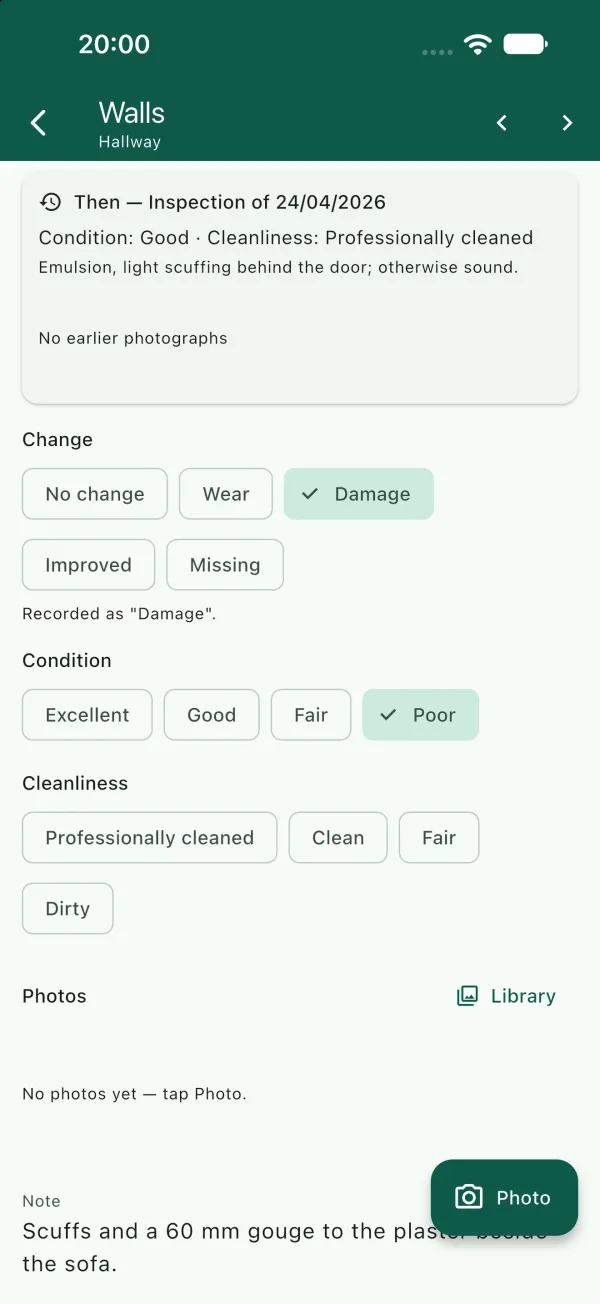
- Open the element. The Then card at the top shows the earlier grade, description and photographs.
- Tap No change. The earlier grades are carried forward, the element is marked compared, and the next element opens.
A 60-element property with nothing changed is 60 taps.
Something changed
- Tap the grade you see now. The change is worked out from the earlier grade: one step down is Wear, two or more steps down is Damage, and any step up is Improved. The line below says what was recorded.
- If you disagree, tap the change you want. Your choice stands.
- Tap Photo and photograph it now. The report prints the earlier photograph beside this one, each with its capture time.
- Write a Note: what changed, where and how big.
Tap Missing for something that is no longer there. It clears the current grade and the report lists it under missing items.
Liability and cost
Where the template records them, the element screen also asks for Liability (Tenant, Landlord or Undetermined) and a Cost estimate. The dilapidations comparison prints them with each change and totals the costs.
New elements
Something the earlier record never saw, such as a new appliance, is added with Add item in its area. It opens with "Not in the earlier record"; grade it, or tap New to record it as it is. It prints as new, with no "then".
Interim visits
An interim visit is a comparison for a mid-tenancy check. Choose Interim visit from New visit. Everything starts as unchanged, so you open only the elements where something has changed. The interim report lists the changes with then-and-now pairs, followed by everything checked with no change.
Finish the comparison
- When the progress bar is full, choose Mark visit complete from the walk's menu. Elements left uncompared print as not compared, not as unchanged.
- Sign, or send a signing link. See Signing.
- Export the check-out, dilapidations or party-wall comparison report. See Reports and exports.
The next visit can compare against this one, so a chain of tenancies or yearly schedules each walks the record before it.