

A visit can carry several signatures: yours as the inspector, then the tenant, landlord, agent or adjoining owner. Each is a declaration from the template, for example "I confirm that this inventory is a fair and accurate record of the contents and condition of Flat 3, 12 Maple Grove on 24/04/2026", with a signature drawn by hand. Counterparties can sign on your device, or from a link on their own phone.
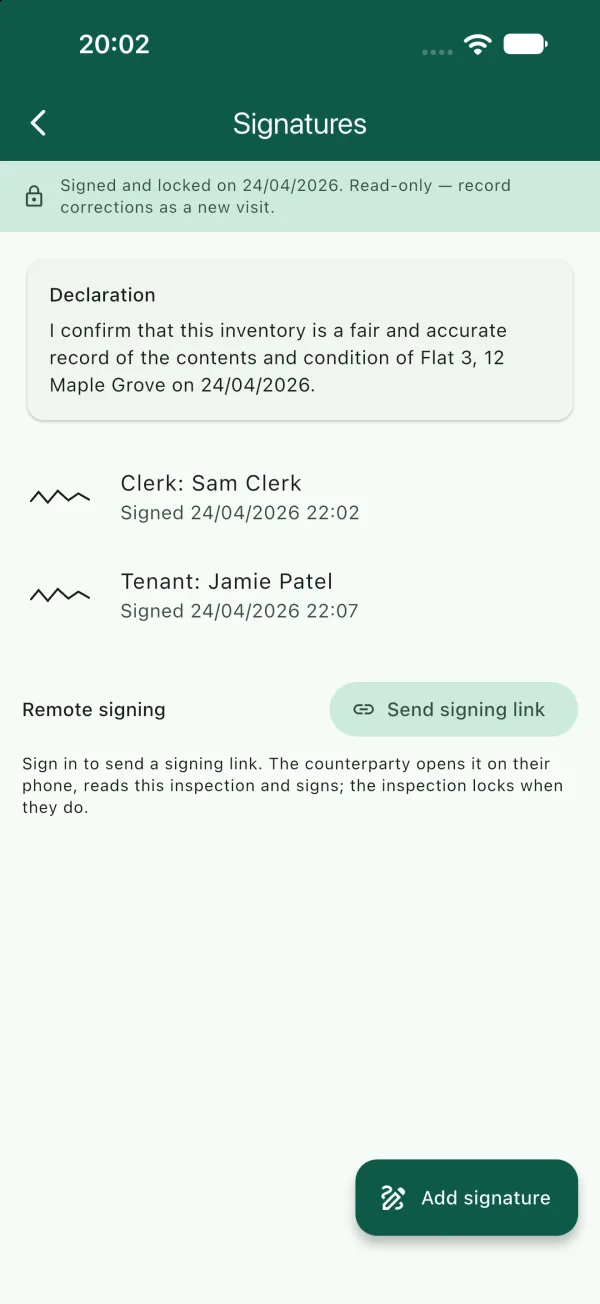
Sign on the device
- From the walk, tap the signature icon at the top, or choose Signatures from its menu.
- Tap Add signature. The inspector signs first, so the first signature is yours: your name is pre-filled from Settings.
- For a counterparty, type their Name and choose who they are under Signing as: the roles come from the template.
- Tap Continue to sign, hand them the device, and let them sign with a finger. Tap Sign.
Signing as a counterparty locks the visit, and the app asks "Lock this visit?" before it does. Check the walk is complete first; corrections afterwards would be a new visit. See Locked visits.
Send a signing link
The tenant is often not there at check-in. A signing link lets them read the record and sign from their own phone, with no app and no account. Links need you to be signed in and on Pro or a Team seat.
- On the Signatures screen, tap Send signing link.
- Type their Name and choose who they are under Signing as. Both print with their signature.
- Choose how long the link lasts under Link expires in. The default is 14 days.
- Add a Passcode if you want one. Tell them the passcode separately from the link, by phone or in a different message.
- Tap Create link. The link is copied to the clipboard and shown once; tap Share… to send it by message or email, or paste it wherever you like.
What the counterparty sees
- They open the link on their phone. It is a web page at boluga.com showing a read-only copy of the visit: every area, element, grade, description and photograph, and for a check-out the then-and-now pairs.
- They enter the passcode if you set one.
- They read the declaration and sign with a finger.
Their signature arrives on your device the next time it syncs, usually within seconds if you are online. The visit locks, and their signature prints in the report with "via link" and the time.
Manage links
The Signatures screen lists every link for the visit with its state: awaiting signature with its expiry date, signed, expired unsigned, or revoked. To stop a link before it is used, tap it and choose Revoke link. It stops working at once. A link can be used to sign once.
After signing
Once a counterparty has signed, the visit is locked and the report always comes out the same. If something is wrong, start a new visit from the property: an interim or comparison visit for a change in condition, or a new baseline for a fresh record. See The comparison.