

The report is what you hand over. Every layout can be previewed for free, in full, with a watermark; exporting, sharing and printing need Pro. This page covers choosing a layout, the export options, CSV and Excel, and putting your logo on the cover.
Which report
The layouts a visit can produce come from its template and the kind of visit:
- A first visit produces the schedule of condition (commercial), the inventory and check-in (residential) or the pre-works schedule (party wall).
- A comparison visit produces the check-out comparison, the dilapidations comparison or the post-works damage comparison, with a summary of changes, then-and-now photograph pairs, notes, and liability and cost where recorded.
- An interim visit produces the interim report: changes since the earlier date, then everything checked with no change.
Every layout prints a key to the grades with their definitions, a caption with the capture time under every photograph, the visit details and signatures, and the visit id and hash on the cover.
Preview on Free
- From the walk, tap the PDF icon at the top, or choose Export report from its menu.
- Choose the options you want and tap Export PDF.
- On Free, the report opens as a preview with a band across every page. You can read every page of it, so you see exactly what Pro would export. Tap Export & share — Pro to see the plans.
Export a PDF
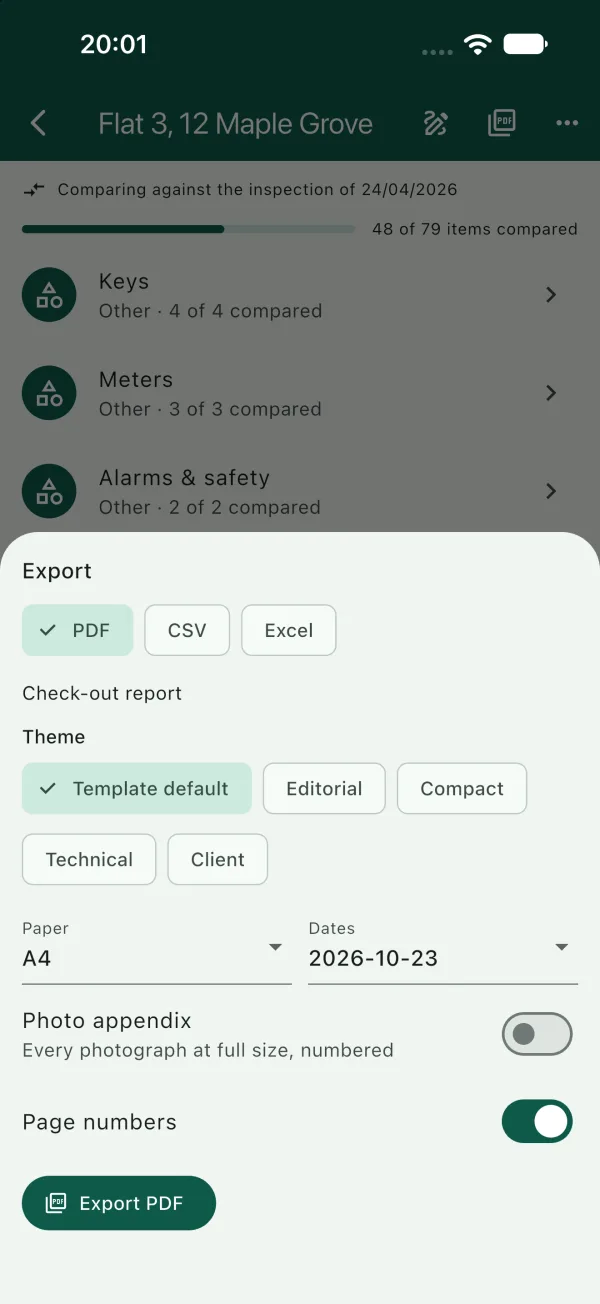
- From the walk, tap the PDF icon or choose Export report.
- Choose PDF and, if the visit offers more than one, the Report layout.
- Choose a Theme: Template default, or Editorial, Compact, Technical or Client.
- Choose the Paper size, A4 or Letter, and the Dates format.
- Turn on Photo appendix to add every photograph at full size, numbered, at the end. Page numbers is on by default.
- Tap Export PDF. The report opens in a preview; tap Share to send, print or save it.
Exported reports are also kept in the app's folder in Files on iPhone and iPad, or in the app's documents on Android, named after the property, the layout and the time. You can share them from there later.
CSV and Excel
On the export sheet choose CSV or Excel instead of PDF. A first visit exports one row per element with its grade, description, measurements and custom fields. A comparison exports one row per compared element with both grades, the change, the note, and liability and cost where recorded. Both need Pro.
Your logo and credit line
- Logo: tap the account icon on the property list, then Report logo and Choose report logo. It prints on every report cover at full resolution. Pro.
- Credit line: in Settings, Credit Condition on exported reports adds a small "made with Condition" line to the footer. Turn it off if you would rather not.
Email templates
If you send the same covering message with every report, write it once. In Settings, open Email templates and tap New template. Give it a name, a subject and a message. The merge fields listed on that screen (the property, tenant, agent reference and visit date) are filled in from the visit when you share a report.