

A pay period is the span your employer pays you for. Clock Card totals each job by its own period, so the figure on screen is the figure you expect on the payslip.
Choosing the pay period
Open Jobs, tap the job, and set Pay period:
- Weekly, starting on the day you pick under Week starts on.
- Every 2 weeks, from a date you pick under A period starts on. Any period's first day will do; the app works out the rest.
- Twice a month: the 1st to the 15th, and the 16th to the end of the month.
- Monthly, starting on the day of the month you pick, 1 to 28.
Changing the period re-groups existing shifts; nothing is lost.
Reading the timesheet
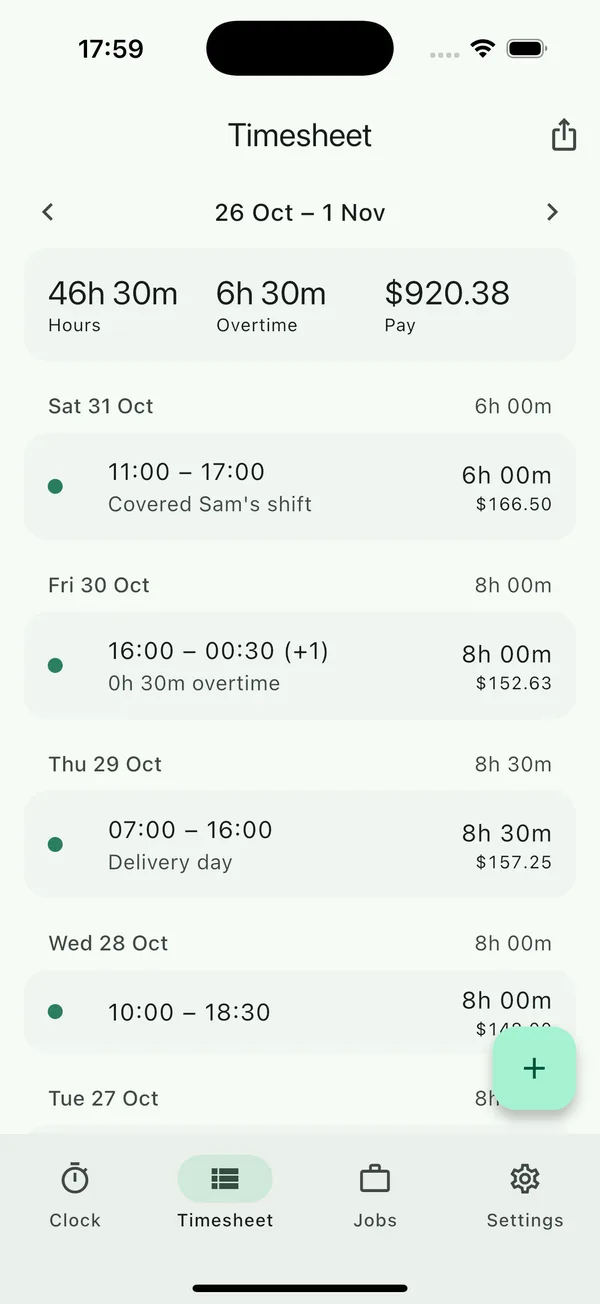
The Timesheet tab shows one period: its dates, the totals for hours, overtime and pay, then every shift grouped by day with the day's hours. The arrows either side of the dates move to earlier and later periods. The current period is also summarised on the Clock tab.
Editing and deleting a shift
Tap any shift to open it. You can change the job, start and end, breaks and notes, then Save. The bin icon at the top deletes the shift after a confirmation. A deleted shift is gone from every total.
If the start and end you enter overlap another shift of the same job, the app warns Overlaps another shift. Save anyway keeps it if the overlap is real, for example a correction you will tidy up; otherwise go back and fix the times.
Exporting a period
- Move to the period you want.
- Tap the share icon at the top of the timesheet. The sheet is titled Export this period.
- Choose Spreadsheet (CSV) or PDF timesheet, then pick where to send it: Mail, Messages, Files, AirDrop, Drive and so on.
- CSV is free. One row per shift with date, job, start, end, break minutes, paid hours, overtime hours, rate, pay and notes, plus a total row, in a form Excel, Numbers and Google Sheets open directly.
- PDF timesheet needs Pro. It is a one-page sheet for the period with the job, your shifts, the totals and the rate, ready to send to a manager or client.
Both are produced by the same calculation as the screen, so they never disagree with it.